


FAQ
Ah, the classic "I've just changed my keyboard's batteries, and now it's giving me the silent treatment" conundrum. Fear not, digital warrior! Reconnecting your wireless keyboard is easier than convincing your cat it doesn't need a third breakfast. First, ensure those fresh batteries are snugly in place – no half-hearted insertions here. Next, locate the connect button on your keyboard (it's probably hiding in plain sight). Press it like you mean it, and watch for any blinking lights – that's your keyboard's way of saying, "Hey, I'm ready to party!" Now, on your computer, open your Bluetooth settings faster than you'd grab the last slice of pizza. Look for your keyboard in the list of available devices and click "Connect." If it doesn't appear, try turning your keyboard off and on again – the IT crowd's favorite magic trick. Voila! You should now be typing away like a caffeinated novelist on a deadline.
Spoiler alert: Wired keyboards are the teetotalers of the input device world – they don't need batteries to get their kicks. These stalwart peripherals draw power directly from your computer through that umbilical cord masquerading as a USB cable. It's like they're perpetually hooked up to an IV drip of pure, unadulterated electricity. No battery anxiety, no frantic searches for AA cells at 2 AM, and no unexpected "keyboard comas" mid-sentence. However, some fancy-pants wired keyboards might have batteries for extra features like backlighting or programmable keys. But for the core typing experience? Nada. They're the low-maintenance friends of the tech world – always there, always ready, never asking for a battery change.
Oh, those alluring keyboard lights – the siren song of late-night typing sessions. But do they secretly feast on your battery life like a digital vampire? Short answer: Yes, but they're more like a mosquito than a Great White Shark. Keyboard backlighting does indeed nibble away at your battery, but it's not the power-hungry monster you might imagine. The drain depends on factors like brightness level and the type of lighting technology used. LED backlights, for instance, are relatively efficient little energy-sippers. However, if you're the type who likes their keyboard to rival the Las Vegas Strip in luminosity, you might notice a more significant impact. For most users, though, it's a small price to pay for the ability to type coherently at 3 AM without waking up the entire household with a desk lamp. Just remember: moderation is key. Your battery (and your retinas) will thank you.
Ah, the longevity of an Apple keyboard battery – a topic that's sparked more debate than pineapple on pizza. Apple, in their typical "we're not just good, we're insanely great" fashion, claims their Magic Keyboard can last about a month on a single charge. But let's be real – your mileage may vary more than a used car salesman's promises. Heavy typists might find themselves reaching for the charging cable more frequently than they'd like to admit. On the flip side, if you're more of a "hunt-and-peck" typist who uses their keyboard sparingly, you might forget what the charging port looks like. Factors like backlight usage (if applicable), Bluetooth signal strength, and even room temperature can affect battery life. The good news? Even when the battery does decide to call it quits, charging is faster than you can say "planned obsolescence." So, while it may not last forever, it'll certainly outlast your patience for those never-ending Zoom meetings.
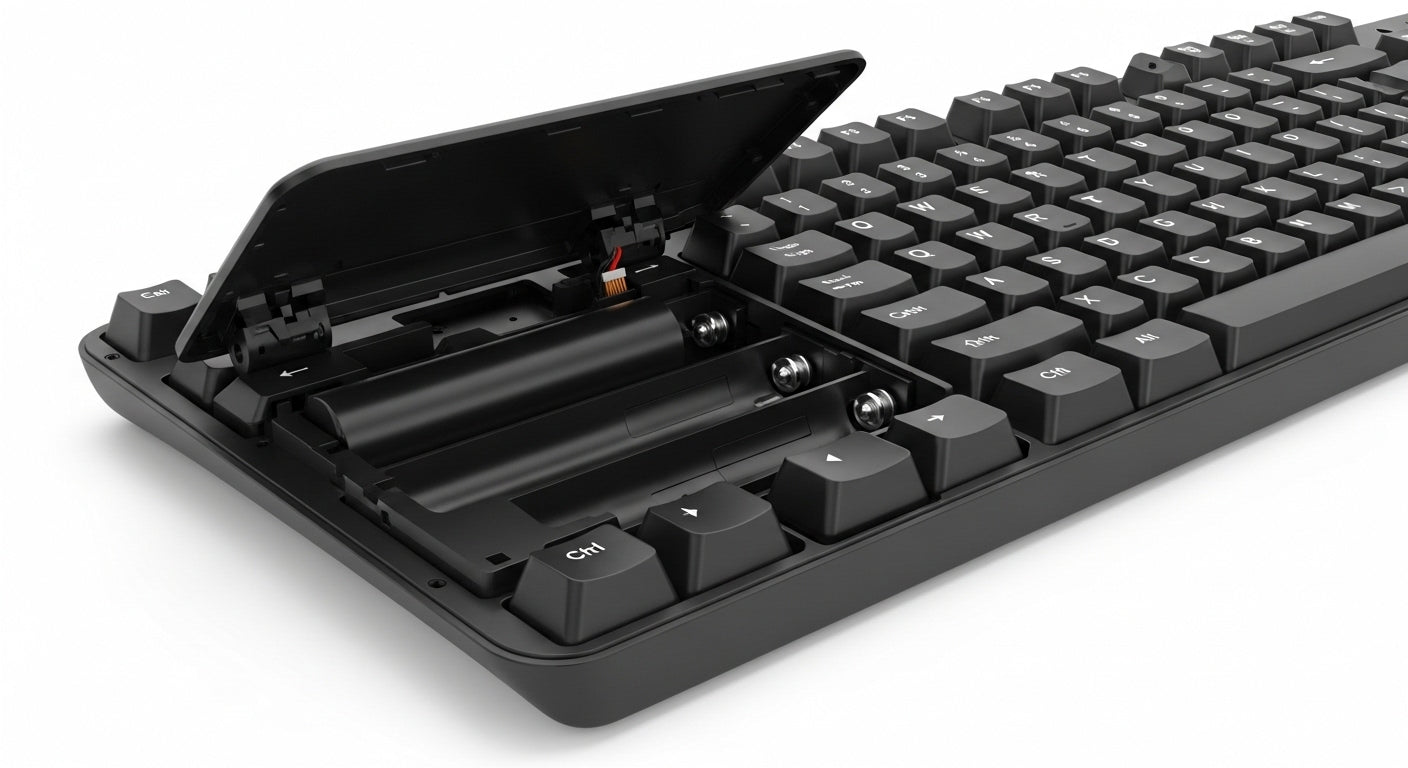
Changing the battery on your Logitech keyboard is about as complicated as making a sandwich – if that sandwich required you to flip your keyboard upside down first. Start by locating the battery compartment – it's usually on the back, cleverly disguised as an innocuous panel. Some models might require you to slide the cover off, while others might have you reaching for a tiny screwdriver (because apparently, Logitech thinks we all secretly wish we were watchmakers). Once you've cracked open this treasure chest of power, out with the old batteries and in with the new. Most Logitech keyboards feast on AA or AAA batteries, but double-check to avoid a mismatch more awkward than showing up to a black-tie event in flip-flops. Make sure you're inserting them in the right direction – there's usually a helpful diagram for those of us who struggle with basic polarity. Snap the cover back on, flip your keyboard right-side up, and voila! You're back in business, ready to type your magnum opus or, more likely, argue with strangers on the internet.
Checking the battery on your Apple Magic Keyboard is easier than resisting the urge to check your ex's social media. First, ensure your keyboard is actually connected to your Mac – it's not going to spill its battery secrets to just anyone. Once you're sure you're on speaking terms, click on the Apple menu faster than you'd swipe right on your crush's profile. Navigate to "System Preferences" (or "System Settings" if you're running macOS Ventura or later), then click on "Bluetooth." Here, you'll find a list of connected devices that would make a tech hoarder proud. Look for your Magic Keyboard in this digital lineup, and next to it, you'll see its battery percentage, displayed with all the subtlety of a neon sign. If you're more of a "glance and go" type, you can also check the battery status in the menu bar – just look for that little Bluetooth icon. It's like having a fuel gauge for your fingers, ensuring you never run out of typing juice mid-rant.